C_S43 Exam Guide
This C_S43 exam focuses on practical knowledge and exam application scenarios related to the subject area. It evaluates your ability to understand core concepts, apply best practices, and make informed decisions in realistic situations rather than relying solely on memorization.
This page provides a structured exam guide, including exam focus areas, skills measured, preparation recommendations, and practice questions with explanations to support effective learning.
Exam Overview
The C_S43 exam typically emphasizes how concepts are used in professional environments, testing both theoretical understanding and practical problem-solving skills.
Skills Measured
- Understanding of core concepts and terminology
- Ability to apply knowledge to practical scenarios
- Analysis and evaluation of solution options
- Identification of best practices and common use cases
Preparation Tips
Successful candidates combine conceptual understanding with hands-on practice. Reviewing measured skills and working through scenario-based questions is strongly recommended.
Practice Questions for C_S43 Exam
The following practice questions are designed to reinforce key C_S43 exam concepts and reflect common scenario-based decision points tested in the certification.
Question#1
Task: 5
Configure and create a Maintenance Notification
The project team evaluates during the implementation project the Maintenance Notifications in SAP S /4HANA Asset Management.
The following features need to be checked:
● Configure and create a Maintenance Notification
● Assign catalog specific data to a Maintenance Notification
● Create a Maintenance Notification and save it.
Use the following information:
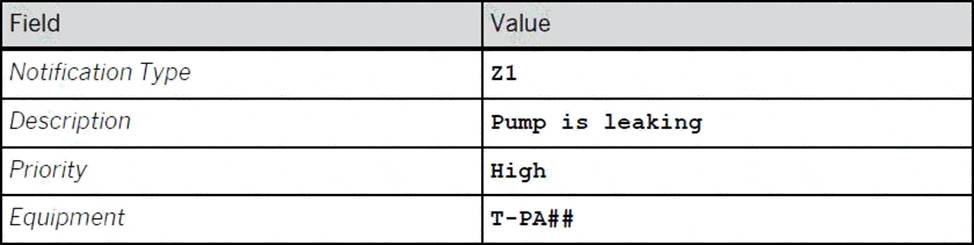
Assign the following data to the just created notification:
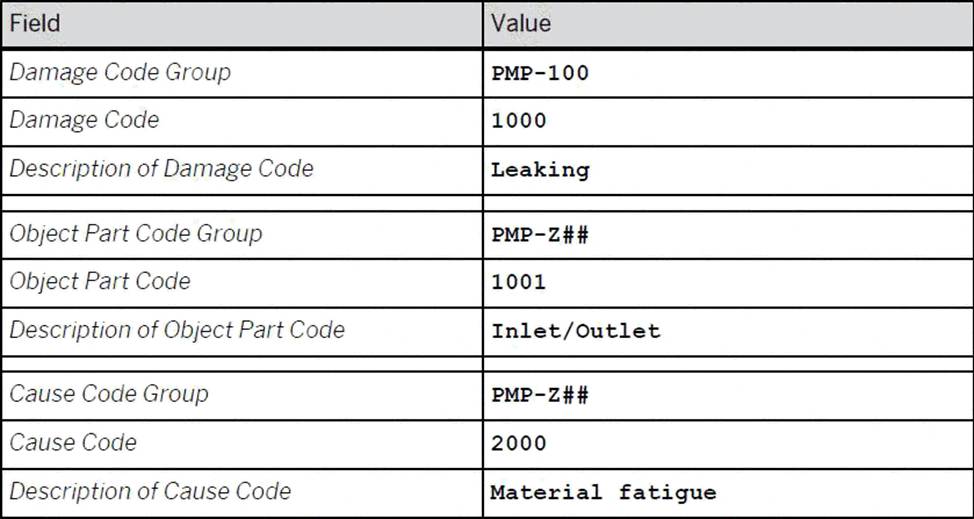
See the Explanation for complete Solution of this Task.
A. Task 5 Overview
The project team is evaluating Maintenance Notifications in SAP S/4HANA Asset Management. This task involves creating a notification and assigning catalog-specific data to it.
Step 1: Create the Maintenance Notification
In this step, you will record a technical problem in the system.
Access the Transaction: Use transaction code IW21 (Create Maintenance Notification) in the SAP GUI or the corresponding Fiori app.
Initial Screen:
Notification Type: Enter Z1.
Press Enter.
Enter General Data:
Description: Enter Pump is leaking.
Priority: Select High.
Equipment: Enter T-PA48.
Save: Click the Save (floppy disk) icon to generate a notification number.
Question#2
Check Inspection Lot and record Inspection Results
The project team evaluates during the implementation project the checking of Inspection Lots Checklist processing including result recording.
The following features need to be checked:
● Display the automatically created Inspection Lot
● Record Inspection Results
● Display the automatically created Inspection Lot for the previously created Maintenance Order including Checklist.
The Inspection Lot comprises the following data:
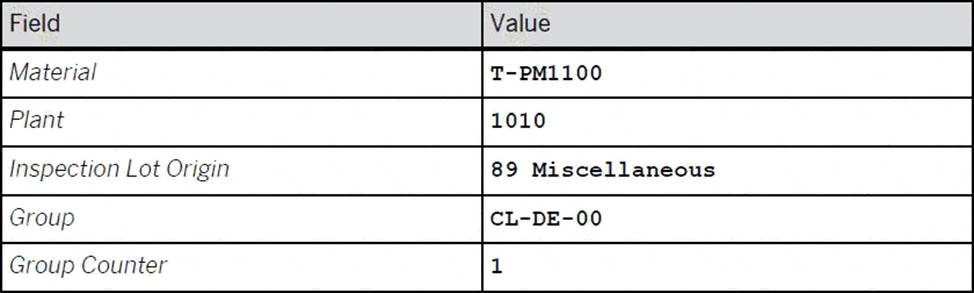
Record Inspection Results for the previously created Inspection Lot so that the Usage Decision is automatically set to Can be used.
See the Explanation for complete Solution of this Task.
A. Task 13 Overview
This task focuses on the quality management (QM) integration with maintenance. You will verify the inspection lot that was automatically triggered by your maintenance order and then record the results to confirm the technical object is fit for use.
Step 1: Display the Automatically Created Inspection Lot
Before recording results, you must verify that the system generated the correct inspection lot for your maintenance order.
Access the Transaction: Enter QA03 (Display Inspection Lot) in the command field and press Enter.
Locate the Lot: Search for the inspection lot associated with the maintenance order you created in Task 12.
Verify the Following Data:
Material: T-PM1100
Plant: 1010
Inspection Lot Origin: 89 (Miscellaneous)
Group: CL-DE-00
Group Counter: 1
Explanation: The inspection lot is the central record for quality testing. Seeing these specific values (Group CL-DE-00) confirms that the classification you set up in Task 11 correctly triggered the intended inspection plan.
Step 2: Record Inspection Results
This is the process of entering the actual findings from the checklist inspection.
Access the Transaction: You can navigate directly from the Inspection Lot in QA03 or use transaction QE51N (Results Recording Selection).
Select the Lot: Enter your inspection lot number and click Execute.
Record Results:
Enter the inspection values for each characteristic listed in the checklist.
Ensure the values you enter are within the "Acceptable" range or marked as "Pass".
Automatic Usage Decision: Record the results such that the Usage Decision (UD) is automatically set to "Can be used".
Save: Click the Save (floppy disk) icon.
Explanation: By recording positive results, you satisfy the quality requirements for the maintenance task. The automatic transition to "Can be used" status tells the system the pump has passed inspection and the maintenance order can proceed toward completion
Disclaimer
This page is for educational and exam preparation reference only. It is not affiliated with SAP, SAP Certified Application Associate, or the official exam provider. Candidates should refer to official documentation and training for authoritative information.


