NCM-MCI-6.10 Online Practice Questions

Home / Nutanix / NCM-MCI-6.10

Latest NCM-MCI-6.10 Exam Practice Questions

The practice questions for NCM-MCI-6.10 exam was last updated on 2026-02-24 .

Viewing page 1 out of 1 pages.

Viewing questions 1 out of 6 questions.

Question#1

Task 5
An administrator has been informed that a new workload requires a logically segmented network to meet security requirements.
Network configuration:
VLAN: 667
Network: 192.168.0.0
Subnet Mask: 255.255.255.0
DNS server: 34.82.231.220
Default Gateway: 192.168.0.1
Domain: cyberdyne.net
IP Pool: 192.168.9.100-200
DHCP Server IP: 192.168.0.2
Configure the cluster to meet the requirements for the new workload if new objects are required, start the name with 667.

A. To configure the cluster to meet the requirements for the new workload, you need to do the following steps:
Create a new VLAN with ID 667 on the cluster. You can do this by logging in to Prism Element and going to Network Configuration > VLANs > Create VLAN. Enter 667 as the VLAN ID and a name for the VLAN, such as 667_VLAN.
Create a new network segment with the network details provided. You can do this by logging in to Prism Central and going to Network > Network Segments > Create Network Segment. Enter a name for the network segment, such as 667_Network_Segment, and select 667_VLAN as the VLAN. Enter 192.168.0.0 as the Network Address and 255.255.255.0 as the Subnet Mask. Enter 192.168.0.1 as the Default Gateway and 34.82.231.220 as the DNS Server. Enter cyberdyne.net as the Domain Name.
Create a new IP pool with the IP range provided. You can do this by logging in to Prism Central and going to Network > IP Pools > Create IP Pool. Enter a name for the IP pool, such as 667_IP_Pool, and select 667_Network_Segment as the Network Segment. Enter 192.168.9.100 as the Starting IP Address and 192.168.9.200 as the Ending IP Address.
Configure the DHCP server with the IP address provided. You can do this by logging in to Prism Central and going to Network > DHCP Servers > Create DHCP Server. Enter a name for the DHCP server, such as 667_DHCP_Server, and select 667_Network_Segment as the Network Segment. Enter 192.168.0.2 as the IP Address and select 667_IP_Pool as the IP Pool.


Question#2

Task 7
An administrator has environment that will soon be upgraded to 6.5. In the meantime, they need to implement log and apply a security policy named Staging_Production, such that not VM in the Staging Environment can communicate with any VM in the production Environment,
Configure the environment to satisfy this requirement.
Note: All other configurations not indicated must be left at their default values.

A. To configure the environment to satisfy the requirement of implementing a security policy named Staging_Production, such that no VM in the Staging Environment can communicate with any VM in the production Environment, you need to do the following steps:
Log in to Prism Central and go to Network > Security Policies > Create Security Policy. Enter Staging_Production as the name of the security policy and select Cluster A as the cluster.
In the Scope section, select VMs as the entity type and add the VMs that belong to the Staging Environment and the Production Environment as the entities. You can use tags or categories to filter the VMs based on their environment.
In the Rules section, create a new rule with the following settings:
Direction: Bidirectional
Protocol: Any
Source: Staging Environment
Destination: Production Environment
Action: Deny
Save the security policy and apply it to the cluster.
This will create a security policy that will block any traffic between the VMs in the Staging Environment and the VMs in the Production Environment. You can verify that the security policy is working by trying to ping or access any VM in the Production Environment from any VM in the Staging Environment, or vice versa. You should not be able to do so.


Question#3

Task4
An administrator will be deploying Flow Networking and needs to validate that the environment, specifically switch vs1, is appropriately configured. Only VPC traffic should be carried by the switch.
Four versions each of two possible commands have been placed in Desktop\Files\Network\flow.txt. Remove the hash mark (#) from the front of correct First command and correct Second command and save the file.
Only one hash mark should be removed from each section. Do not delete or copy lines, do not add additional lines. Any changes other than removing two hash marks (#) will result in no credit.
Also, SSH directly to any AHV node (not a CVM) in the cluster and from the command line display an overview of the Open vSwitch configuration. Copy and paste this to a new text file named Desktop\Files\Network\AHVswitch.txt.
Note: You will not be able to use the 192.168.5.0 network in this environment.
First command
#net.update_vpc_traffic_config virtual_switch=vs0 net.update_vpc_traffic_config virtual_switch=vs1 #net.update_vpc_east_west_traffic_config virtual_switch=vs0 #net.update_vpc_east_west_traffic_config virtual_switch=vs1
Second command
#net.update_vpc_east_west_traffic_config permit_all_traffic=true
net.update_vpc_east_west_traffic_config permit_vpc_traffic=true
#net.update_vpc_east_west_traffic_config permit_all_traffic=false
#net.update_vpc_east_west_traffic_config permit_vpc_traffic=false

A. First, you need to open the Prism Central CLI from the Windows Server 2019 workstation. You can do this by clicking on the Start menu and typing “Prism Central CLI”. Then, you need to log in with the credentials provided to you.
Second, you need to run the two commands that I have already given you in
Desktop\Files\Network\flow.txt. These commands are:
net.update_vpc_traffic_config virtual_switch=vs1 net.update_vpc_east_west_traffic_config permit_vpc_traffic=true
These commands will update the virtual switch that carries the VPC traffic to vs1, and update the VPC east-west traffic configuration to allow only VPC traffic. You can verify that these commands have been executed successfully by running the command:
net.get_vpc_traffic_config
This command will show you the current settings of the virtual switch and the VPC east-west traffic configuration.
Third, you need to SSH directly to any AHV node (not a CVM) in the cluster and run the command:
ovs-vsctl show
This command will display an overview of the Open vSwitch configuration on the AHV node. You can copy and paste the output of this command to a new text file named Desktop\Files\Network\AHVswitch.txt.
You can use any SSH client such as PuTTY or Windows PowerShell to connect to the AHV node. You will need the IP address and the credentials of the AHV node, which you can find in Prism Element or Prism Central.
remove # from greens
On AHV execute:
sudo ovs-vsctl show
CVM access AHV access command
nutanix@NTNX-A-CVM:192.168.10.5:~$ ssh [email protected] "ovs-vsctl show"
Open AHVswitch.txt and copy paste output

Question#4

Task 12
An administrator needs to create a report named VMs_Power_State that lists the VMs in the cluster and their basic details including the power state for the last month.
No other entities should be included in the report.
The report should run monthly and should send an email to [email protected] when it runs.
Generate an instance of the report named VMs_Power_State as a CSV and save the zip file as Desktop\Files\VMs_Power_state.zip
Note: Make sure the report and zip file are named correctly. The SMTP server will not be configured.

A. To create a report named VMs_Power_State that lists the VMs in the cluster and their basic details including the power state for the last month, you can follow these steps:
Log in to Prism Central and click on Entities on the left menu.
Select Virtual Machines from the drop-down menu and click on Create Report.
Enter VMs_Power_State as the report name and a description if required. Click Next.
Under the Custom Views section, select Data Table. Click Next.
Under the Entity Type option, select VM. Click Next.
Under the Custom Columns option, add the following variables: Name, Cluster Name, vCPUs, Memory, Power State. Click Next.
Under the Time Period option, select Last Month. Click Next.
Under the Report Settings option, select Monthly from the Schedule drop-down menu. Enter [email protected] as the Email Recipient. Select CSV as the Report Output Format. Click Next.
Review the report details and click Finish.
To generate an instance of the report named VMs_Power_State as a CSV and save the zip file as
Desktop\Files\VMs_Power_state.zip, you can follow these steps:
Log in to Prism Central and click on Operations on the left menu.
Select Reports from the drop-down menu and find the VMs_Power_State report from the list. Click on Run Now.
Wait for the report to be generated and click on Download Report. Save the file as Desktop\Files\VMs_Power_state.zip.

Question#5

Task 11
An administrator has noticed that after a host failure, the SQL03 VM was not powered back on from another host within the cluster. The Other SQL VMs (SQL01, SQL02) have recovered properly in the past.
Resolve the issue and configure the environment to ensure any single host failure affects a minimal number os SQL VMs.
Note: Do not power on any VMs

A. One possible reason why the SQL03 VM was not powered back on after a host failure is that the cluster was configured with the default (best effort) VM high availability mode, which does not guarantee the availability of VMs in case of insufficient resources on the remaining hosts. To resolve this issue, I suggest changing the VM high availability mode to guarantee (reserved segments), which reserves some memory on each host for failover of VMs from a failed host. This way, the SQL03 VM will have a higher chance of being restarted on another host in case of a host failure.
To change the VM high availability mode to guarantee (reserved segments), you can follow these steps:
Log in to Prism Central and select the cluster where the SQL VMs are running.
Click on the gear icon on the top right corner and select Cluster Settings.
Under Cluster Services, click on Virtual Machine High Availability.
Select Guarantee (Reserved Segments) from the drop-down menu and click Save.
To configure the environment to ensure any single host failure affects a minimal number of SQL VMs, I suggest using anti-affinity rules, which prevent VMs that belong to the same group from running on the same host. This way, if one host fails, only one SQL VM will be affected and the other SQL VMs will continue running on different hosts.
To create an anti-affinity rule for the SQL VMs, you can follow these steps:
Log in to Prism Central and click on Entities on the left menu.
Select Virtual Machines from the drop-down menu and click on Create Group.
Enter a name for the group, such as SQL Group, and click Next.
Select the SQL VMs (SQL01, SQL02, SQL03) from the list and click Next.
Select Anti-Affinity from the drop-down menu and click Next.
Review the group details and click Finish.
I hope this helps.
How else can I help?
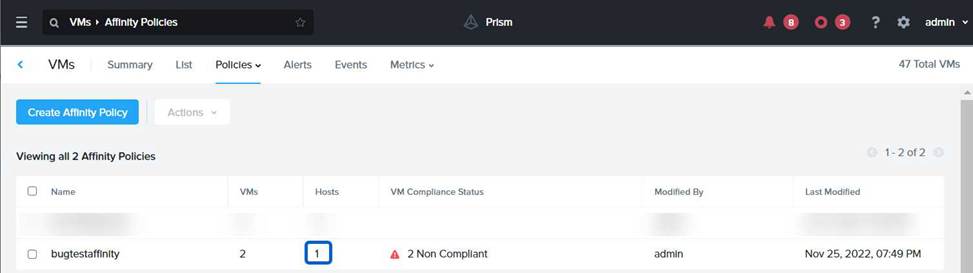
https://portal.nutanix.com/page/documents/details?targetId=AHV-Admin-Guide-v6_5:ahv-affinity-policies-c.html


Disclaimer

This page is for educational and exam preparation reference only. It is not affiliated with Nutanix, NCM-MCI, or the official exam provider. Candidates should refer to official documentation and training for authoritative information.

Exam Code: NCM-MCI-6.10Q & A: 18 Q&AsUpdated:  2026-02-24

  Get All NCM-MCI-6.10 Q&As
